
Setup guide
This guide walks you through everything you need to get started with Dara, from installation to your first test meeting.
Platform availability
Dara is currently available on macOS and Windows.
On macOS and Windows, Dara can capture and transcribe:
Online meetings on any platform (Zoom, Teams, Meet, etc.)
In-person meetings
Voice memos
Any audio playing on your device (videos, podcasts, YouTube, etc.)
Installing Dara
For macOS
Download Dara from our website.
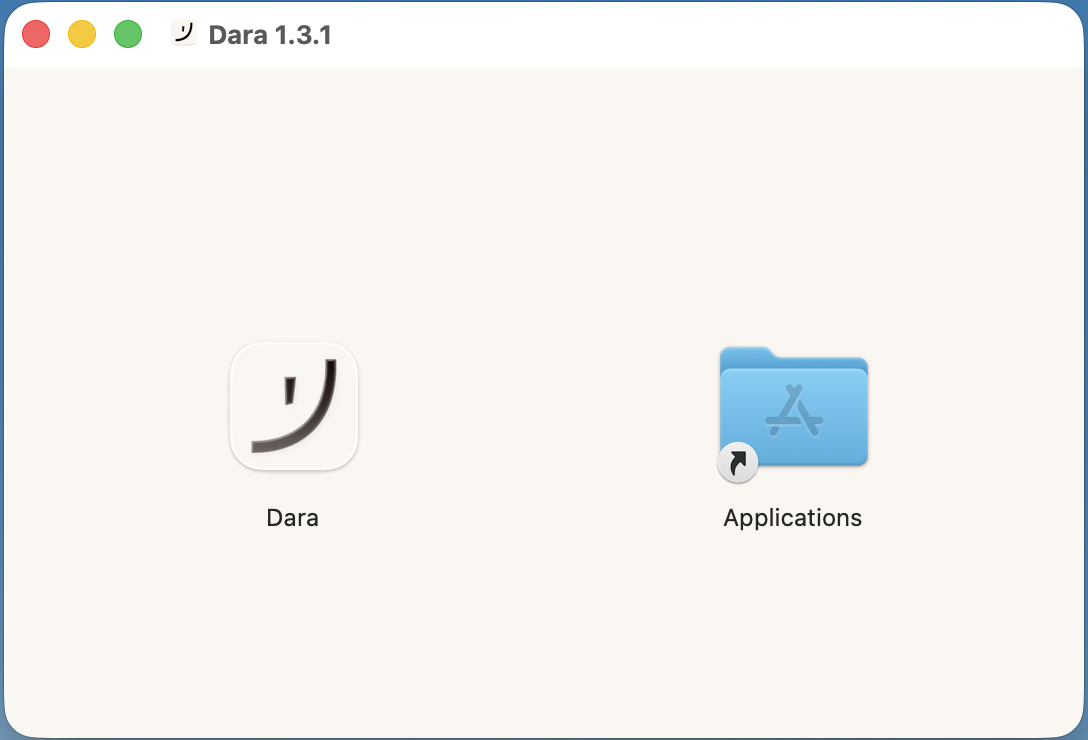
Open the
.dmgfile from your Downloads folder.Drag Dara into your Applications folder.
Launch the app and follow the prompts.
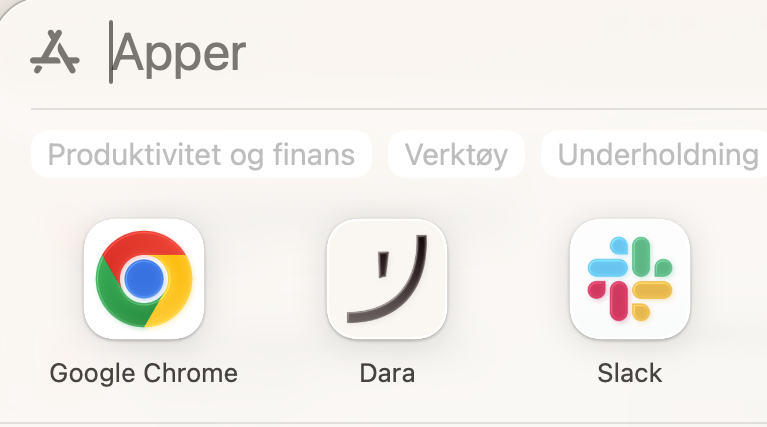
After installation, open Dara the same way you open any other application on your Mac.
For Windows
Download the Dara installer from our website.
Double-click the
.exefile in your Downloads folder.Follow the installation steps in the setup window.
After installation, open Dara from your Start Menu as you normally would.
Launching Dara
Open Dara from your Applications folder, Start Menu, or home screen.
If your system warns that the app was downloaded from the internet, this is expected - choose “Open” to continue.
Signing in
Dara supports both Google Sign-In and standard email login, so you can choose whichever method fits your workflow best.
If you select Sign in with Google, your browser will open a new tab to complete the authentication flow. We recommend using your work account if you typically schedule meetings there, as Dara works best when connected to the calendar you actively use.
If you prefer email login, simply enter your email address and follow the verification steps to access your account.
Audio permissions
To transcribe audio, Dara needs permission to capture your device’s microphone and (on macOS) system audio.
macOS
A popup will appear asking for access. Choose “Allow” for:
Microphone
System Audio Recording
You can adjust permissions later via:
System Settings → Privacy & Security → Microphone / System Audio Recording
Windows
Windows automatically handles microphone permissions. No additional setup is required, but you can review them under:
Settings → Privacy & Security → Microphone
If you run into issues, see our Audio Troubleshooting Guide.
Testing Dara
The first time you sign in, you’ll find a demo inside Dara.
This short walkthrough explains how to:
Start and stop Dara
View your transcription
Generate summaries
Navigate notes and highlights
It’s the quickest way to get familiar with the interface.
You’re all set 🚀
Once everything is connected, Dara will show your upcoming meetings and your first demo note.
You’re now ready to capture, transcribe and summarize calls automatically.
If you need help with specific features, explore the rest of our Help Center for guides, FAQs, and best practices.